-->
Showing posts with label Free stuff. Show all posts

02 January 2014

App Review: Tale of Tales

Do your children like fairy tales?  Tale of Tales is a new iPad app that generates wonderfully funny stories aimed at 3-5 year olds, although I think it would still be fun for those a little older.  You and your child can experiment and play with different combinations of well known and new characters and enjoy a different story each time.  Read a story with a clumsy witch, a donut monster, and little red riding hood all in the one story!  Or how about a pixie, the big bad wolf, and Rapunzel? 

How does it work?  The first page is where you select the language - English or Italian.  On each page are five coloured buttons; your child selects a button to start the story, and a new coloured button for each page and the story is created as you go along.  There are 25 colourful animated pages, making up to 2000 different stories. 


It’s a lot of fun and nice and easy for a young child to navigate.  Perfect for reading with your child as they can choose how the story builds.  

Tale of Tales Tale of Tales is free at the App Store until 10 January.  You can read more about it here.

03 December 2013

Send a letter to Santa


Do your children write a letter to Santa?  My boys started with writing a note that they gave to Santa when we had photos taken with Santa each year.  Then the shopping centre where we had the photos taken installed a big letter box behind Santa’s throne, so their letters were popped in there.  Two years ago the letter box disappeared, so that year they posted them in the real post box at the post office.  They got the surprise of their lives when they received a postcard back from Santa (lucky I’d put our return address on the back of their envelopes!)


If your children would like to send a letter to Santa there are a few websites that can help with this – especially now that Santa seems to be getting used to technology…..


A letter 4 Santa

A letter 4 Santa has a fill-in-the-box message that you can send to Santa and receive an immediate response.  This site also has Santa’s colouring book, Santa games, questions for Santa, and lots more fun for kids. 


Santa's Little Elves

At Santa’s Little Elves you can order a personalised letter from Santa to your child for $12 (includes postage within Australia) – final orders are taken on 8 December as the letters are posted on 10 December.  You can also order Santa’s official nice list certificates and you can customise with a special achievement or good deed when you order.  .50c from each letter goes to Cystic Fibrosis QLD.


Australia Post

Australia Post gives you two different ways to write to Santa.  First you can do it the traditional way – write a paper letter, address the envelope to Santa – North Pole 9999, add a 60c stamp - make sure your address is on the back - and post it at any street post box or post office in Australia.  In return your child will receive a post card from Santa.  If you visit the Australian Post website (link below) you’ll find eight different Christmas themed paper templates you can print out for your child to write on.

The slightly more techie method is to use Australia Post’s online interactive letter writing system – you get the same result except that you can type your message and select the stationery you want to use, and there are suggestions of what to write to Santa.  You just print it out at the end and address the envelope as normal.  The website also features puzzles, activities and online games.


Saint Nick

At Saint Nick you can create a fill-in-the-boxes online letter to Santa, including a list of what they would like for Christmas; and your child will receive a personal email back from Santa.  http://www.saintnick.org/html/letters.html


North Pole.com

North Pole.com is an entire Christmas experience where your child can select different buildings in the North Pole, and see what happens in that building - play some games in the elf’s clubhouse, view Mrs Claus’s cook book and recipes in the kitchen, play some music or check out the reviews of Christmas movies in Santa’s den, try some Christmas craft and educational activities in the Elf Pal Academy or head to the Mailroom to send a letter to Santa.  You could spend hours on this site.  http://www.northpole.com/mailroom/


Portable North Pole

Portable North Pole is a little different to the other sites.  Instead of receiving a written letter or email from Santa, you get a personalised video message instead.  You just select who Santa will be addressing (nice, naught/nice or naught child or adult), complete the profile of the recipient, including confirming the correct pronunciation of their name, and your message is created.  It’s free, although you can add premium features, like extra pictures and an extra long video from $3.99.  Create your account and once your video has been created you can access it on the site.  I’d suggest creating a test message first so you can check what the best entries/responses are going to be for your child’s message.   http://www.portablenorthpole.com/home


Let me know if you use any of these, or if you've tried any other sites.  


31 October 2013

Free Halloween Apps

It’s Halloween!  If you’ve got the costumes ready, the decorations up and the treats ready to give out, keep your little monsters occupied with some Halloween apps while they’re counting down to trick or treat time. 

There’s apps for creating fun sound effects and lots of games.  But I've only included ‘fun’ games – not the gross zombie killing ones.   This list also only features FREE apps.


SHOOT THE PUMPKIN

You play this game as Dracula.  You have a bow and unlimited arrows, with which you have to aim and shoot the pumpkins on top of Frankenstein’s head. 
Available for:  iPhone, iPad


THE VERY HUNGRY PUMPKIN

In this game you have to guide the pumpkin to as much candy as you can while trying to avoid bumping into the trick-or-treaters.  It starts out easy, but gets more challenging.  Brilliant 3D animation and funny sound effects – great for all ages.
Available for:  iPhone, iPad, iPod touch


CARVE-A-PUMPKIN

The mess free way to carve a pumpkin!  Choose from five different pumpkin styles, then ‘carve’ your own design or choose from the library of crazy eyes, noses and mouths.
Available for:  iPhone, iPad & iPod Touch


PUMPKIN CARVER

Similar to above, but for Android


HALLOWEEN PARTY SOUND LITE

Pick a sound, set the timer, hide your phone and spook your family and friends!
Available for:  Android


PUMPKINS VS. MONSTERS

It’s an all-out battle between pumpkins and monsters! Simple controls where you flick your pumpkins to attack the monsters. Story mode with up to 90 levels and six different worlds to play in – endless fun!
Available for:  Android


WHERE’S OZIL? HALLOWEEN

A search and find adventure for Halloween - Find the pumpkin and try to keep going as far as you can!
Available for:  iPhone, iPad


Get your iPhone and iPad apps from iTunes/Apple App Store
Get your Android apps from Google Play


30 September 2013

Tap the Cat - a special app and a special offer


If you have young children – 4-6 years - I have a very special app for you, and a very special offer. 


Tap the Cat is a fun, engaging and highly interactive iPad app that teaches key early literacy skills through touch, listening and speaking.   If you have kids and you have an iPad you know how they are drawn to it, especially for playing games.  Why not take advantage of that attraction and use it to enhance their learning?


Tap the Cat features nine activities, each reinforcing a different literacy skill – from rhyming words, to drawing and colouring, to speaking and handwriting.  With bright animations, catchy music, fun sound effects and exciting rewards, you've got the perfect learning environment!   


Tap the Cat also allows children to record and play back their own voice.  Once your child has completed all nine activities a very special feature is unlocked; their voice recordings, and their coloured-in pictures, can be used to create their own ebook .  


Tap the Cat is another brilliant app from ABC Reading Eggs – a team of educators with more than 20 years’ experience in early childhood education, who believe learning to read should be fun, motivating, and full of success.  

As soon as I bought my iPad at the end of last year two of the first apps I added to it were from ABC Reading Eggs – Spelling Games Grade 4 and Targeting Maths 3, which have since been added to with Spelling Games 6 and Targeting Maths 5.   I have tried quite a few different ‘educational’ apps for my boys and the only ones that have remained on my iPad, and that they are happy to use, are Spelling Games and Targeting Maths. 

You really can’t go wrong with any of the ABC Reading Eggs apps – and there are apps for every age from 3 to 12; take a look at the range at www.readingeggs.com.au/apps   


Tap the Cat is usually $2.99, however, from tomorrow 
– Tuesday 1st October 
Tap the Cat will be FREE for 48 hours!    

So, tomorrow morning pop over to the App Store and download Tap the Cat. 

Due to customer demand this offer has now been extended until Friday 4th October


24 September 2013

Techie organising with everyday items

It amazes me how inventive some people can be when they need to fix something or solve a problem.  Take a look at these brilliant ideas using everyday objects to solve techie problems.


Use a pen spring to protect charger cables

Over time, charger cables start to fray or detach with continuous usage, especially at the connector’s end. One way to keep that from happening is to use the spring from a pen. Coil it around your cable and slide it up to the point of your connector. That part will stay firm and your cables will last longer.  (I wish I’d know that one before my mouse cable snapped off from its connector!)


Use bread tags as cord holders

The next time you buy bread, don’t throw away the tab. Use it to label your cables.


Empty toilet paper rolls as cord holders

Packing a coiled up cord into a roll can not only keep it from unravelling, but also help you label it by writing what it’s for on the roll with a marker pen.  


They don’t  have to look like toilet rolls – cover them with leftover gift wrap or fabric.


More cable organisation – this time with Washi tape


Pump up the volume by placing your iPhone / iPod in a bowl 

the concave shape amplifies the music


Keep cords from getting tangled in your bag by keeping them in an eyeglasses case


You’ll find all these ideas and more on my Techie Organising board on Pinterest.

19 September 2013

Video messaging with Skype

Did you know you can use Skype to create a video message to send to your Skype contacts?  It's much more fun and more personal than sending a voicemail message or an SMS.   Gather the family around your webcam and you can all get in on the recording.   

A video message is perfect for sending a birthday or Christmas message to a friend on the other side of the world – they don’t even have to be online or available when you send your message.  The message will be waiting for them the next time they open Skype.  

Just click on the plus arrow in a contact’s chat window, and select ‘Send video message…’ then follow the onscreen instructions.  Don’t worry if you stuff it up, you can record your message as many times as you need until you get it right.


If you don’t see this option on your Skype screen it just means you don't have the latest version of Skype.  Just go to www.skype.com and download the latest version.

Free unlimited video messaging is also available on the Skype app for iPhone and iPad, Android, Blackberry, and just last week for Windows Phones.

Here's how to send a video message on your phone


26 April 2013

Free Stuff Friday - Pocket


Pocket is celebrating its first anniversary today.  If you haven’t discovered Pocket yet you are really missing something wonderful. 

Pocket is a web site and a free app for your iPad, iPhone, Mac, and Android phone or tablet that allows you to save articles or pages that you find on the web.  Rather than just bookmarking or adding a site to your favourites list in your browser, you add the entire article to Pocket.  Then, when you have time you can read it later.  It also syncs across all your devices, so you can catch up on reading your articles whenever or wherever you are.

I have the Pocket extension for Google Chrome installed on my computer (get it at the Chrome web store) and the bookmarklet for Chrome on my iPad, so that if I find an article I want to keep I just click the button on the Chrome toolbar and it is added to Pocket.  You can also get the bookmarklet for Safari and Firefox.  Alternatively, you can just copy a URL and when you then go to Pocket you click on a link at the bottom of the page to save that clipping.


I read Pocket on my iPad and for most pages it’s not the same format as on the webpage – Pocket changes it to a much easier to read format, no ads, no extra stuff – just like reading a magazine article.  Once read I can delete it, or, if I want to keep it for future reference I can send it to Evernote.  If there’s an article I think one of my friends would like I can email it to them, or share it on Facebook or Twitter, right from a link on the article in Pocket.  There’s also a link to go back to the original article – especially useful if you want to read more on that site.


Since I started using Pocket I've found it so much easier to keep up with all the digital information I'm bombarded with each day.  Whenever I find an article I want to read, on Facebook, an email newsletter, the web, I just add it to Pocket and then I can forget about it until I have the time to really read it.

Click here to go to the Pocket page where you’ll find links to get Pocket for all your devices.  The page that this link takes you to will change depending on which browser you open it in – it changes to display the correct bookmarklet or app for that browser – how clever is that!

15 March 2013

Free Stuff Friday - Kidpix


With two boys who absolutely love drawing I have a never-ending collection of ‘art’ accumulating around my home.  There are piles in cupboards, each year I get a really large art envelope for each for keeping all the art from school, and even stacks next to the TV.  Every now and then I’ll have a clear out and sneak some down to the bin, but that still leaves a mountain of art!

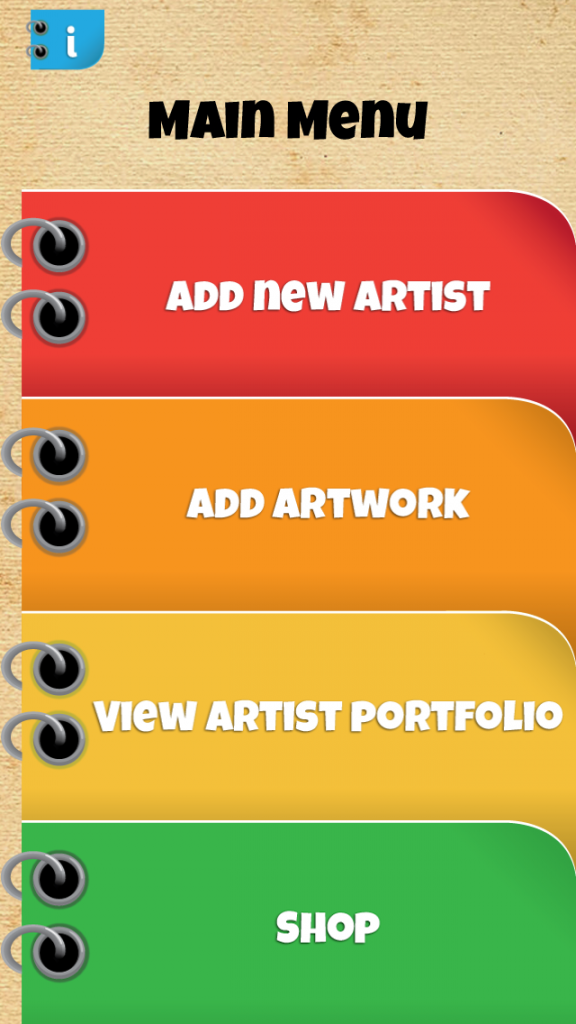
I now have a solution!  Kidpix: Save Your Kid’s Art is a brilliant new app that helps you manage your child’s artwork. 

It’s a free app for your iPad, iPhone and Android phone and tablet and it is so easy to use:


  1. Set up an artist profile for each child.
  2. Add their artwork – you can select it from your camera roll, or take a photo with the camera on your device.
  3. Select a frame – there’s lots of different styles and colours to choose from
  4. Adjust the brightness and rotate the picture if needed
  5. Add a title, date, or notes
  6. Save it to your camera roll, to your Kidpix collections, or to Dropbox


With Kidpix you can view your child’s collections at any time without tripping over them, but you can also share their artwork with friends and family via email, Facebook, Twitter, Flickr, and Tumblr, or, if you've saved them to Dropbox, you could share that Dropbox folder. 


I added all the artwork on the fridge to Kidpix on my iPad, and now I'm going to start on the piles on the floor. 

p.s. while my boys love looking back through their creations, they refused to let me put them on this post.  So the pictures above are not from my artistic boys.

You can get Kidpix from iTunes  and from Google Play 


01 February 2013

Free Stuff Friday: Clutter Rescue app


Would you like access to expert organising advice whenever you need it, right on your phone or tablet?  Today I have a brilliant new app for you.  The Clutter Rescue app is an extension of the service provided by Helen of Clutter Rescue, an expert member of the Australian Association of Professional Organisers. 


This app is my equivalent to a child’s favourite game app – I just love anything to do with organising.  But I've never seen an app that gives you so much…..
  • Ground rules to get you started on organising
  • Organising Challenges to work through at your own pace that tackle specific clutter problems, like your car, handbag, tax, kitchen pantry, etc.
  • Quick organising tips
  • Clutter Rescue TV episodes with practical advice on how to organise specific areas of your home, schedule and children’s chores and routines;
  • Organising Podcasts to keep you motivated
  • Articles and blog posts on all aspects of organising your home.


I've been using this app for a few days, and I just love that I can choose the spot in my home that I want to tackle today and this one app provides all the information I need to get it all sorted; and not just tips for me to read – there’s videos, podcasts, blog posts and challenges.


In this video, Helen introduces and guides you through the app.


The Clutter Rescue app is available for iOS and Android and it’s free.

If you’re an organising junkie you should also take a look at more of Clutter Rescue


18 January 2013

Free Stuff Friday - Free Books


One of my earliest memories is of my mother, my sister and I catching the train into Sydney each school holiday to see the latest Disney movie, have lunch in Coles cafeteria (1st floor of their Pitt Street store), and then going to Angus and Robertson’s book shop.  Every holiday they used to have special book reading sessions for kids.  I remember one holiday when they had origami lessons for kids – I still remember buying a book on origami that day.  The highlight of my day was always choosing a book to buy. 

If I see a book store nowadays, I still can’t resist exploring.  Unfortunately, there aren't that many around any more.  Being able to order books online much cheaper than in a shop is the main cause.  My love of books isn't as great as my love of a good deal – so I've been ordering books online for a few years now. 

The other cause of the demise of the book store is e-books.  E-books (short for electronic book) are books published in digital form, so you can read them on computers and other electronic devices.  E-books can be conventional printed books that have also been produced in a digital format, or they can originate as e-books – without a printed equivalent.  You can buy children’s books, text books, novels, reference books – any type of book you can buy in a physical book store, you can buy as an e-book.   


To read an e-book you can buy an e-reader – like Amazon’s Kindle, or the Nook, or any number of other less well known readers. (I’ll let you know what to look for in an e-reader in a future post.)   But you don’t have to buy a special reader for e-books.  You can use an iPad, or any other Android or Windows tablet.  You can also read e-books on most smartphones, iPods and some MP3 players - although the screen size really doesn’t make it such a pleasurable experience.  You can also read e-books on your computer.  If you've got a desktop computer it will probably be fine for reading text books or business publications, but sitting at your desk may not be exactly the right atmosphere for reading 50 Shades of Grey!

So, you have the device, what else do you need to read e-books?  It needs the software to enable your device to display and navigate through the e-book.  

If you have an iPad you already have the iBooks app.  Amazon’s Kindle software can be downloaded to your Windows computer or phone, iPad, iPod Touch, iPhone, Mac, Android tablet or smartphone, and Blackberry – and it’s free, here.  There are e-reader apps for both Android (Aldiko is the most popular) and iOS devices (Bluefire Reader).  

The majority of e-books you may see advertised on blogs and websites are in PDF format – which means all you need is a free PDF reader, like Adobe, to read them on your computer, tablet or smartphone.  E-books in PDF format can also be read using iBooks on your iOS device.  

The world’s largest bookstore, Barnes & Noble (makers of the Nook e-reader) also offers free reading apps for iPad, iPhone, iPod Touch, Android tablets and smartphones, Windows PCs and Mac here.  

Now you’re set up with the device and the software, where do you get the books and how much do they cost?  You’ll pay between $1 and $30 for an e-book, but every e-book store also offers FREE BOOKS. Here’s some to try…..

iPads have access to the iBookstore. 

Amazon

With Kindle software on your devices you have access to Amazon’s bookstore
If you have multiple devices, all with Kindle on them, any e-books you buy from Amazon will be synced across all your devices.  So, it doesn't matter if you start reading a book on your laptop, but then want to continue reading on your iPad – your bookmark will be in the right place no matter which device you use.

Barnes and Noble

You can buy and download NOOK books at Barnes & Noble.  This is also where you can download the Nook app for your Windows, Android or iOS device.

Feedbooks

Feedbooks has one of the easiest websites to navigate – Just click on the links to either Free Public Domain Books or Free Original Books.  All the books on Feedbooks are compatible with the Kindle software, Aldiko (Android), and Bluefire (iOS).

Google Books

Google has committed itself to scanning all 130 million books in the world.  At the end of 2011 they had completed 20 million.  Not all of these books will be available to read online because of copyright issues.  Currently there are 3 million available through the Google Bookstore where you can download reading apps and browse the collection of free and for-sale e-books. 

Project Gutenberg

Project Gutenberg offers over 40,000 free e-books for download to a PC, Kindle, iPad, Android or other portable device, and over 100,000 additional free titles through its partners and affiliates.


One of the greatest benefits of e-books is not having to carry the books around - an e-reader can hold thousands of books but weigh less than the weight of one.  

Funny fact:  Did you know that each e-book you add to an e-reader increases the weight of the e-reader - true!


Do you have a favourite e-book store?  I’d also love to hear your experiences of using e-readers and other devices for reading books.


11 January 2013

Free Stuff Friday - Temple Run


If you can imagine Indiana Jones running from the boulder in Raiders of the Lost Ark, or just about any other adventure movie where the hero is running from something/someone – that is this game.


The hero has got the golden idol and is running for his life being chased by Evil Demon Monkeys and trying to avoid different obstacles along the ancient temple walls, and along sheer cliffs.  The game is a repetition of this scene, except more obstacles are added, the scenes expand as you travel further, you can collect coins to buy power ups and unlock new characters. 

Fabulous graphics and very addictive.  Yesterday I put it on my iPad and my son’s new Android phone, and I'm having trouble getting them both off it.  

This game has had over 1.5 million downloads and was the number one free iOS app. 

Aaron (11) rates it 9 out of 10 on the iPad
 
Danny (9) rates it 7.5 out of 10 on his Android phone